Google Classroom Guide: How to Leave a Class Easily
Digital learning environments can get cluttered fast. Whether a semester has wrapped up, you accidentally clicked into the wrong section, or you are looking to tidy up your online workspace, knowing how to leave a class in Google Classroom is an essential digital survival skill.
For many students and co-teachers, figuring out the menu layouts can sometimes feel like a digital scavenger hunt. Fortunately, removing an old course from your learning management system (LMS) only takes a few seconds once you know where to look. In this guide, we will break down the exact steps to unenroll from a class across desktop and mobile devices, troubleshoot common roadblocks, and handle teacher-specific permissions.
Why Clean Up Your Google Classroom Dashboard?
Keeping your virtual classroom dashboard organized does more than just look nice; it directly impacts your daily productivity. When you have old classes lingering on your homepage, you run the risk of:
- Missing crucial assignment notifications from active courses.
- Confusing current projects with finished coursework.
- Wasting valuable time scrolling through irrelevant learning modules.
Dropping inactive courses helps streamline your digital life, ensuring you only focus on what matters right now.
How to Leave a Class as a Student
If you are enrolled as a student, the process depends slightly on whether you are using a computer or a mobile app. Before you begin, keep in mind that your class files remain safely stored in your Google Drive even after you unenroll.
Method 1: Using a Computer (Browser)
- Go to classroom.google.com and log in with your school or personal Google account.
- Locate the class card for the course you want to exit on your main dashboard.
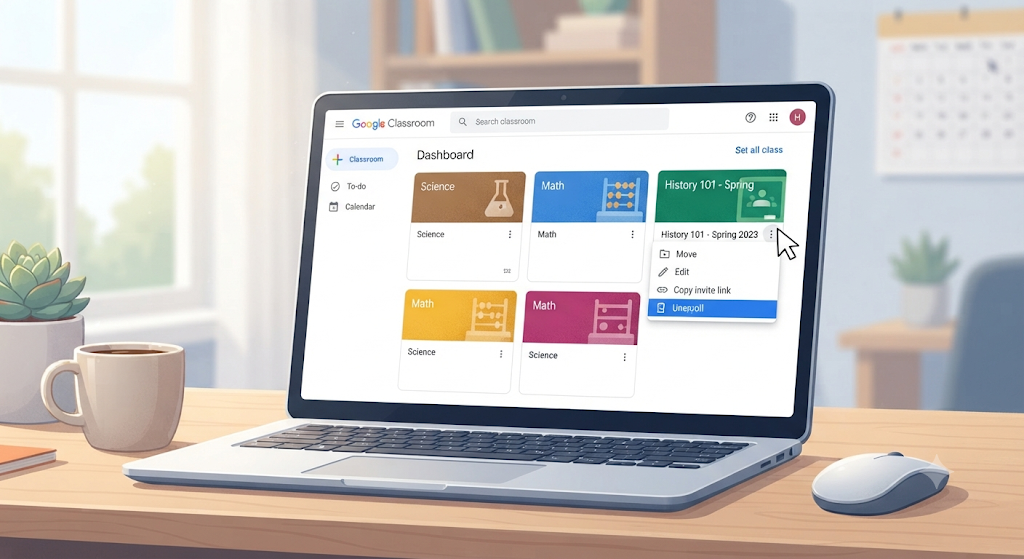
- Click the three vertical dots (the menu icon) in the top-right corner of the class card.
- Select Unenroll from the drop-down menu.
- Click Unenroll again in the pop-up window to confirm your choice.
Method 2: Using the Mobile App (Android & iOS)
- Open the Google Classroom app on your phone or tablet.
- Tap the class card for the course you wish to leave to open it.
- Tap the three dots icon located in the upper-right corner.
- Tap Unenroll.
- Confirm the prompt when it appears on your screen.
Note: If you cannot find the unenroll option, it is likely because your school administrator has restricted student unenrollment permissions. In this case, you will need to contact your instructor or IT admin for help.
How Teachers and Co-Teachers Can Exit a Class
Managing virtual spaces as an educator involves different rules. While primary owners cannot simply “leave” a course they created without transferring ownership or deleting it, co-teachers have more flexibility.
Steps for Co-Teachers to Leave:
- Log into your Google Classroom account and open the target class.
- Navigate to the People tab at the top of the page.
- Find your name listed under the Teachers column.
- Click or tap the three vertical dots next to your name.
- Select Leave class and confirm.
Primary teachers who want to clear out old terms should instead archive the class through the main menu settings to remove it from their active view.
Troubleshooting Common Google Classroom Roadblocks
Even with straightforward instructions, you might run into a few digital hiccups. Here is how to fix them:
- The “Unenroll” button is missing: Your institution’s Google Workspace administrator may have locked student accounts to prevent accidental deletions. Reach out to your teacher to have them manually remove you.
- The class is archived: You cannot unenroll from a class that has already been archived by a teacher. Ask your instructor to temporarily unarchive the course so you can clear it from your end.
- Accidental removal: If you leave a class by mistake, do not panic. You can easily rejoin by asking your teacher for the original class code or an email invitation link.
Frequently Asked Questions (FAQs)
What happens to my homework and files after I unenroll?
When you leave a class, your assignments and uploaded documents are not deleted. They remain securely stored inside a dedicated Classroom folder within your personal Google Drive.
Can I rejoin a class after I leave it?
Yes, provided the class is still active and accepting members. You can rejoin by logging in and entering the original class code provided by your instructor.
Why can’t I see the three dots on my class card?
If you are viewing a simplified layout or using an outdated version of the app, the options menu might be hidden. Try updating your mobile application or switching to a desktop web browser for better navigation.
Conclusion
Mastering how to leave a class in Google Classroom is a quick way to keep your digital workspace neat, organized, and stress-free. Whether you are a student tidying up past terms or a co-teacher wrapping up a collaborative project, following these simple steps gets the job done in seconds.
Ready to optimize more of your digital routine? Explore our other helpful guides on managing online learning tools and boosting your everyday productivity!
Also Visit my Education Website: Gimkit
Related Article

The Blueprint to Wealth: Exploring Make1M.com Strategies
Navigate AT&T Services: Account Management & Support Guide